
Set up a channel
Open Social Agent in your product's Console. A channel holds the voice, language, history, and posting schedule for one account. Choose the X or LinkedIn channel you want to work on and check its settings before generating posts.
You can review and edit drafts before connecting an account. Connect your own account through its authorization flow for automatic publishing. A manual channel requires you to publish the content yourself. Use Channels & Connections to choose the account, check its status, and set Writing Style and Language.
| What you start with | What you get | Your next decision |
|---|---|---|
| Product updates and research | Source material and a Topic with channel angles | Check whether the evidence and message fit your audience |
| A selected Topic | Draft posts with images for its channels | Review the text and image for each channel |
| A reviewed post | A confirmed publishing window | Approve the account, content, and timing |
| A published post | A result link and available engagement | Check the actual post and decide what to write next |
Understand sources, topics, and drafts
Social discovery collects source material such as product updates, research, and community activity. Topic selection chooses the evidence and an angle for each target channel. Generation then writes the selected topics into posts with images.
In Workflow, open a Topic to inspect its research and channel content. A source or Topic is not itself a finished post. Routine generation can prepare drafts on the product's schedule; those drafts still need review.
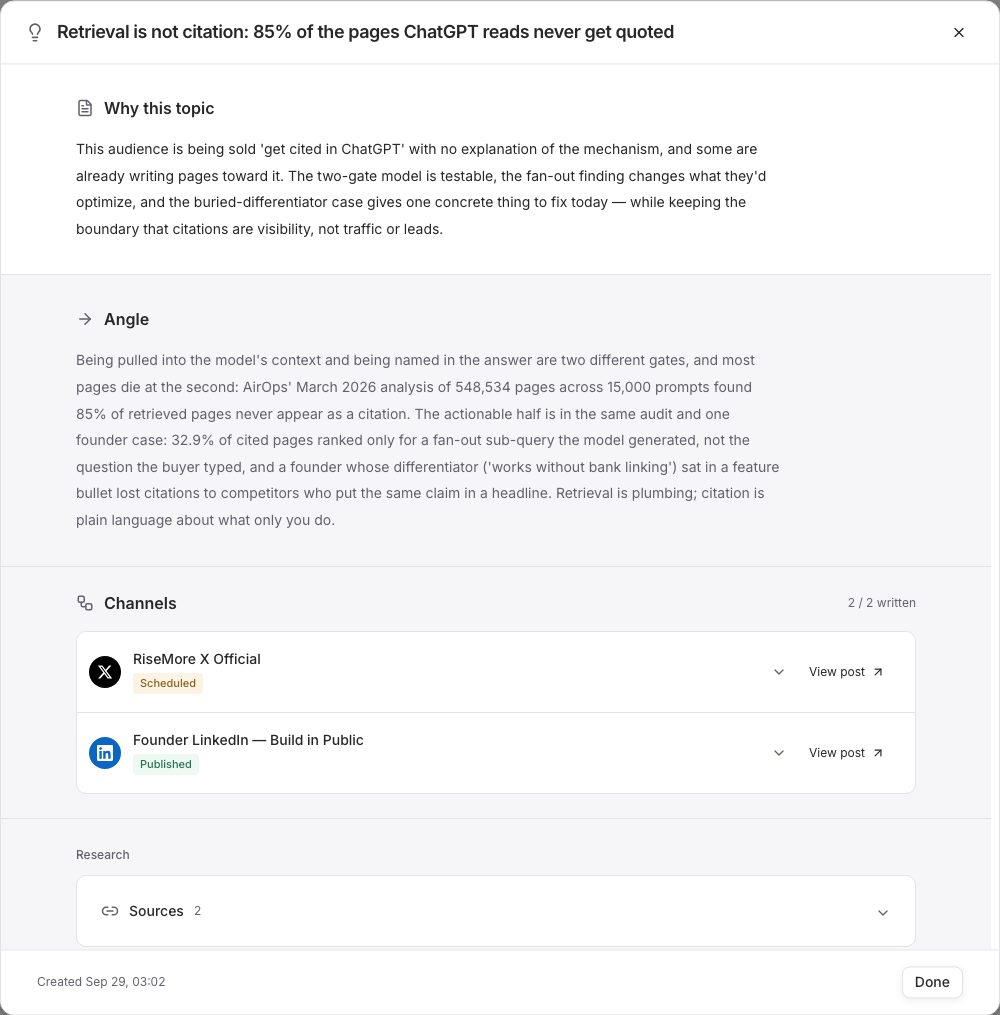
This existing Topic links to separate posts for its two channels. Use View post to read each saved version and check its status. The source-to-post walkthrough follows this Topic from its material to the X post.
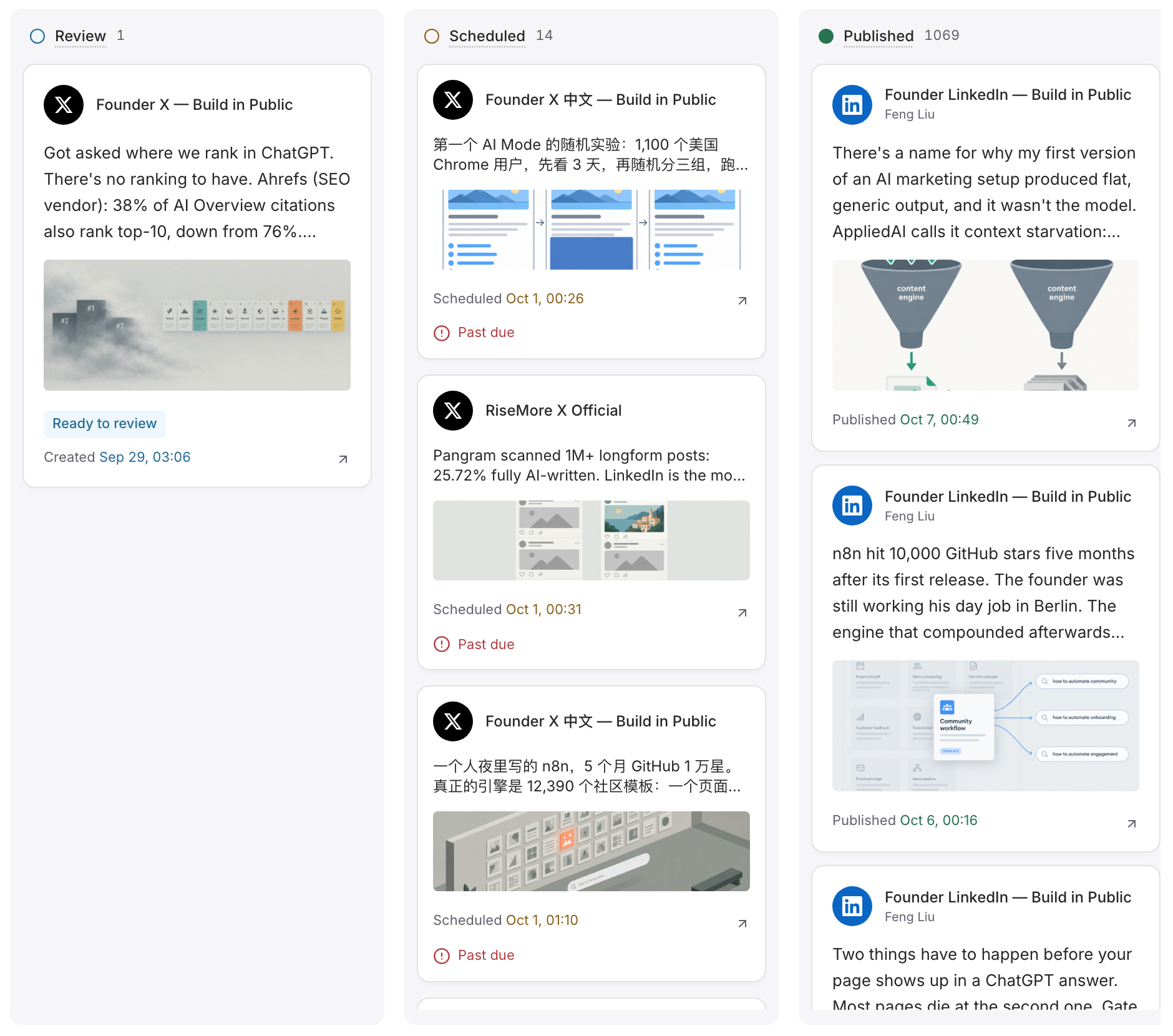
Review a post and its image
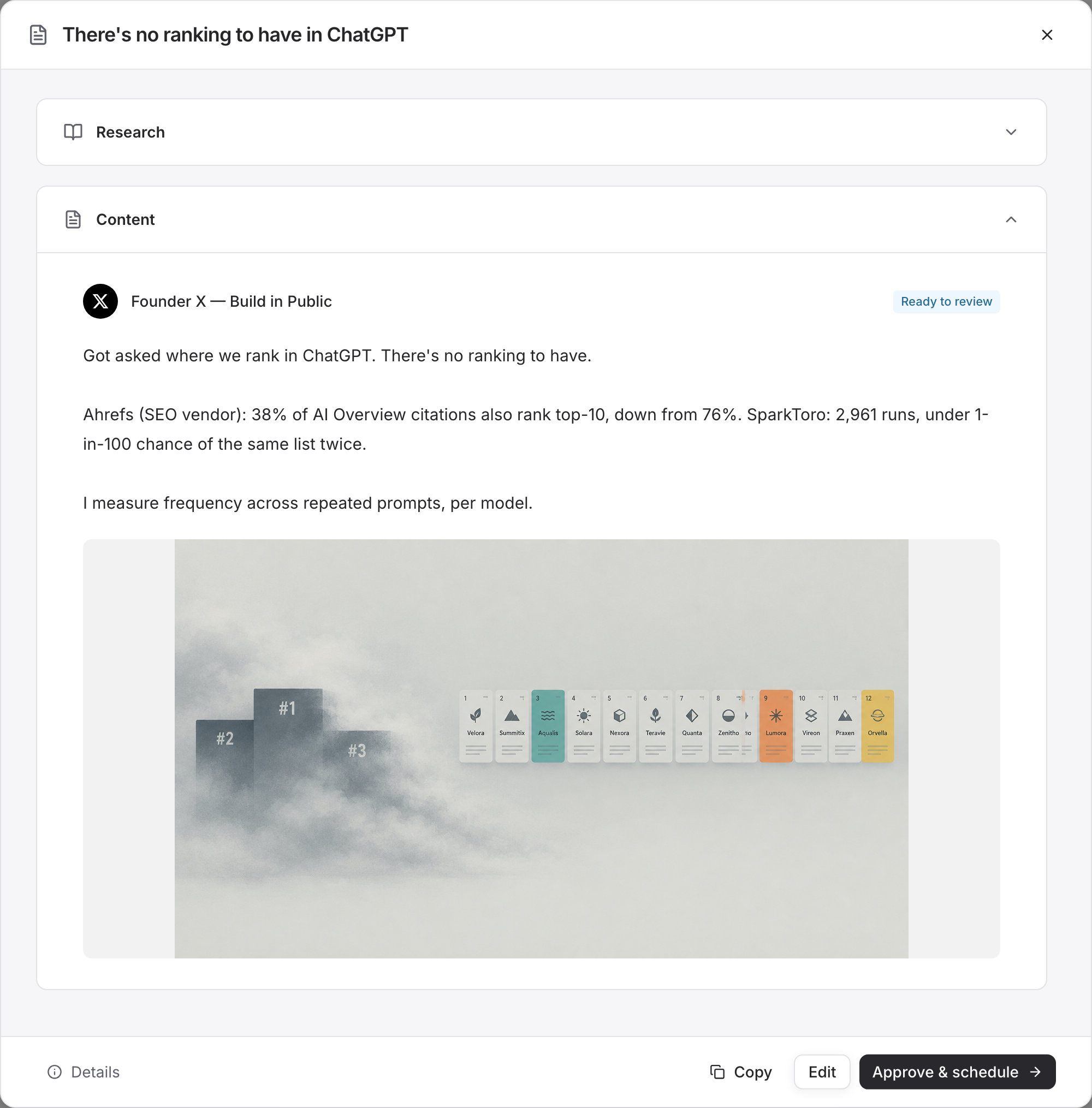
Open the draft and read Research and Content. Check the actual claim behind a statistic, the product description, links, tone, and image. Use Edit to save your changes before approval.
In Edit, you can change the post text and upload or remove images. Use Preview to inspect your changes, then save. Enhance and Compress, when available, help revise the text but still require your review; their AI use depends on your plan and credits. If the product facts are wrong across drafts, update Product Knowledge as well as the current post.
If text exists but an image failed, keep the saved text. You can upload a suitable image in the editor, or follow Troubleshooting for unfinished generation. A saved body alone does not establish that the complete post is ready.
Set posting slots and approve
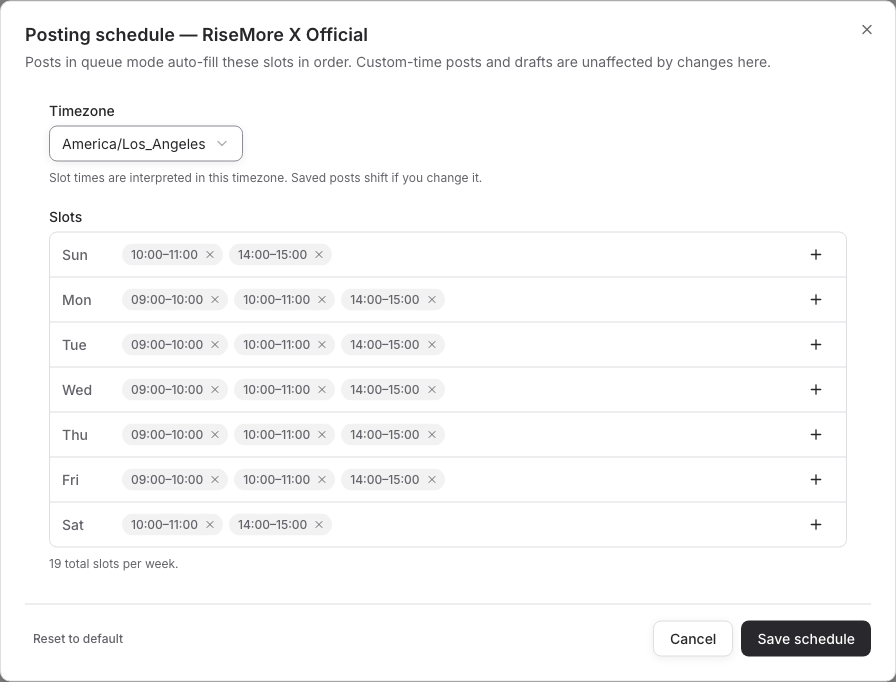
Open the channel's Schedule, choose its timezone, and add weekly posting slots. Check which account the channel is connected to. A research or generation task in Scheduled has its own timing and does not define these publication slots.
Choose Approve & schedule in the post. Review the Publish window, select another available window if needed, and check the timezone before choosing Confirm schedule. On a connected, active channel, RiseMore can publish the approved post within that window, provided the product is active. A manual channel still requires your own publication action.
Check the scheduled state afterward. Reschedule lets you choose another window. To take an eligible post out of the queue for revision, open Details → Return to review. Use Publish now and its confirmation when you want to send an eligible approved post immediately. If no window is available, add one in the channel's schedule before confirming.
Publish manually or resolve a failure
On a manual channel, copy the content and publish it yourself, then use Mark published to record the real result link. Marking it published does not send it anywhere. Connecting or reconnecting an eligible channel can enable automatic publishing of already approved posts, so check its queue first.
If a post has not gone out, check its window, account connection, and whether the product or channel is paused. Open a failed post to read the reason. Reconnect an expired account when prompted, then use Details → Return to review to review and schedule it again. If a different view offers Retry, check its resulting schedule afterward. Inspect the platform before resubmitting when the previous result is uncertain; see Troubleshooting.
Verify the published post
Open the post in Workflow and choose View published post when the result link is available. Check the actual account, text, and image. A scheduled state is not a published result, and a manually recorded result is something you supplied yourself.
The post detail shows available likes, reposts, and impressions. Missing metrics are not evidence of zero engagement. Reactions help you understand the post's response; they do not by themselves prove new customers. Use the findings to choose useful follow-up topics.
Keep content relevant
Add new product information and useful materials as the product changes. Enable supported discovery and generation tasks in Scheduled to keep drafts coming, then review them regularly. Scheduled Tasks explains how these tasks differ from the channel's publication windows and why a task may pause.
Watch the Social draft review walkthrough (MP4). Silent recording of the actual Console; the steps are described above.
Next: Review & Publish, workflow, or Pricing & Credits.