
Give RiseMore the facts it should use
RiseMore uses product knowledge to connect a customer question with something your product can actually help with. Start by reviewing the research in onboarding. You can correct the product details afterward and inspect the materials and reports behind later work.
| Information | Where to check it | What it helps you decide |
|---|---|---|
| Product facts, audience, and positioning | Product settings | Whether future research and drafts represent the product accurately |
| Writing style and language for an account | Social Agent → Channels | How posts should sound on that channel |
| Saved source material | Social Agent → Materials | Whether a source is relevant, accurate, and already used |
| Product and market research | Reports | Whether the evidence supports a recommendation |
Correct your product details
- Select your product in the Console, open the product switcher, and choose its Product settings action.
- Check the Product Name, Website URL, and Description. Explain what the product does and what makes it useful; remove claims that are no longer true.
- Review Product Features, Target Audience, and Value Proposition. Include supported capabilities, important limitations, the customer's situation, and why they would choose your product.
- Check Customer problems and Customer language against their sources. Keep observed needs separate from assumptions. Category Tags help guide industry news research.
- Choose Save Changes and check for Product updated. Reopen the settings if you need to confirm the saved values.
For example, if research treats your product as a tool for large teams but you serve individual professionals, correct the audience and value proposition before requesting another draft. Changing product knowledge does not revise a draft you have already approved; review that draft separately.
If the facts are correct but the writing does not sound like you, edit the channel's Writing Style and Language instead. See Channels & Connections.
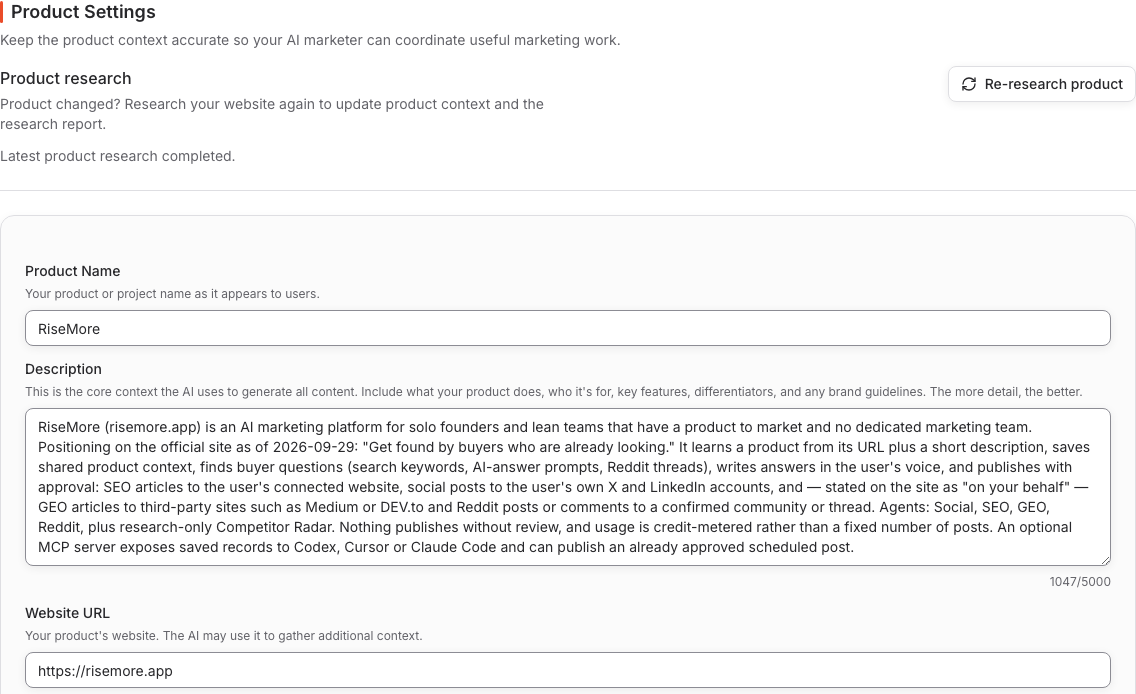
This example shows saved product details available for review. To verify your own correction, save it and reopen the settings; a settings screenshot alone does not establish that a later draft used the updated facts.
Decide whether to research again
Use a manual edit when you already know the correction. Use Re-research product when the website or product has changed enough to need fresh research.
Save your current edits first. In Product settings, choose Re-research product, read the confirmation, and choose Start research. This uses credits and may replace product details with updated research. Existing channels and content are not recreated or rewritten.
The page shows whether research is queued, running, or completed. Once it finishes, review the updated fields and research report before using them in new content. A paused product must be resumed before research can start.
If the page cannot read the research status, retry loading the status first. If a run reports failure, read the reason before starting it again. Check Pricing & Credits for an access or credit message and Troubleshooting for unfinished work.
Inspect and correct source materials
Open Social Agent → Materials. Search the library or change its sort order, then open a material to read Source content and Details. Follow its source link when available. Added is when the material entered RiseMore; Source published, when present, is the date of the original source.
Choose Edit to correct the saved title or source content, then Save changes. Editing this copy does not change the original website or a post already written from it. Open Related topics to inspect how the material was selected for Social content.
The Social usage column explains whether the material can be selected again:
| Status | Meaning |
|---|---|
| Available | It is available for a new Social topic. |
| Reserved | A selected topic has not created its first post yet. |
| Used | It has been used to create a Social post. Deleting that post does not make the material available again. |
Review the source before relying on a claim, even when the material has a useful title or summary. If no source link was saved, the library cannot provide one as evidence. Use Delete material only when you want to remove that library item; revise any affected drafts separately.
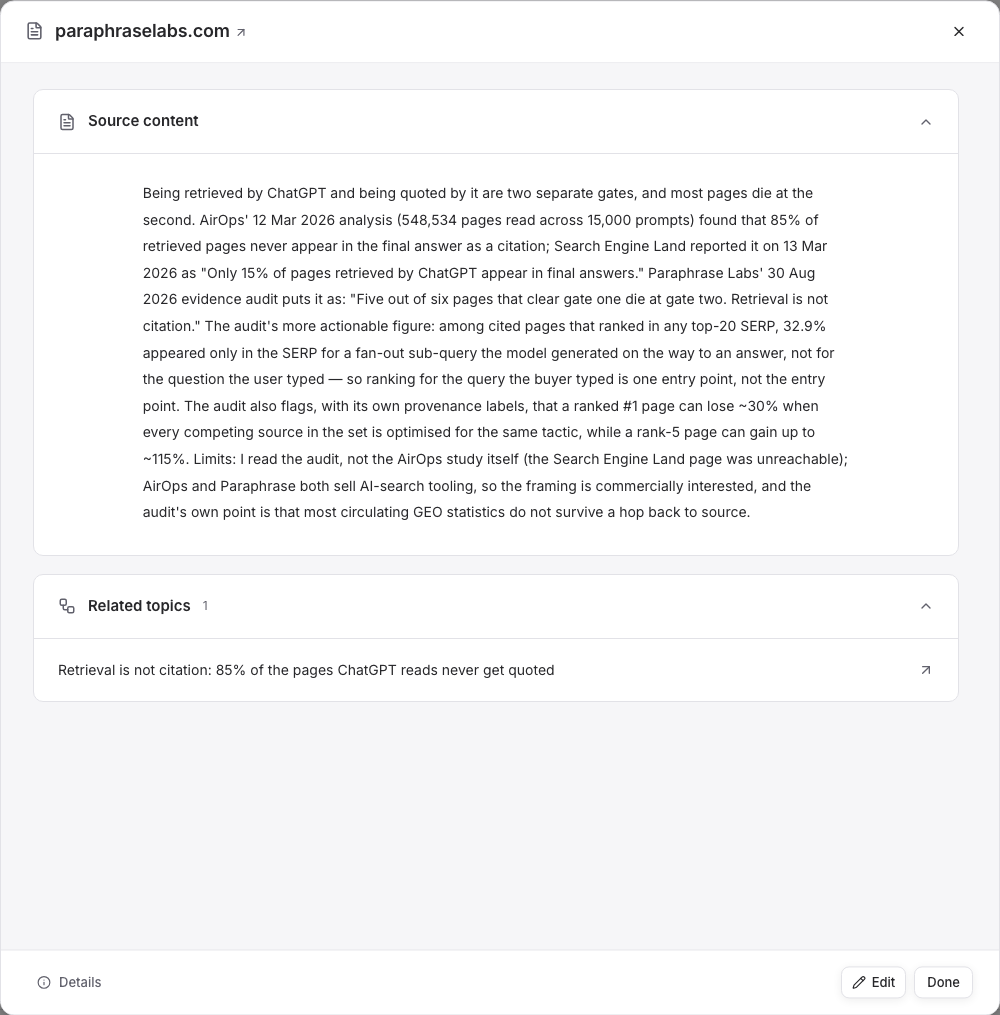
The source and its linked topic remain available for inspection. Read the source's limitations before carrying a claim into your draft; a saved summary is not independent verification of every claim it contains.
Read and download research reports
Open Reports for the selected product and choose the relevant report. Check when it was generated, read the reasoning, and follow its sources. Reports can provide more context than the short summary attached to an opportunity or draft.
Use Download → Download as PDF or Download as Markdown to keep a copy. A downloaded report reflects the content at the time you downloaded it; later research may reach different conclusions. Competitor Radar explains how to use reports about competitor changes.
Watch the saved source and post (MP4). The recording opens the same source shown above, its related Topic, and the existing X post with its image. It demonstrates how to inspect their relationship; the post was already scheduled, and no approval or publication occurs in the recording.
Understand access and sharing
Workspace records require account access. A public report or conversation share link is different: anyone with an active link can read the saved snapshot. Review what it contains before sharing it. Open Shared links to inspect existing links or use Revoke link to stop access through a link. Revocation cannot remove copies someone has already downloaded.
Uploaded files and generated media may have public asset URLs that open without signing in, independently of a report share link. Keep secrets and documents requiring private storage out of those uploads. Relevant product context, messages, and research are also processed by the AI and supporting providers used for the requested work. See the Privacy Policy for processing, retention, and removal details.
Next: set up your channels, follow the marketing workflow, or manage recurring tasks.