
Choose the connection for your destination
You can research your product and review your first draft before connecting a publishing account. A connection is needed when you want RiseMore to publish through an account or website you control.
| Where you want content to appear | What to set up |
|---|---|
| Your X or LinkedIn account | A Social channel and its account connection |
| Your WordPress website | A site connection in SEO Agent |
| A third-party article destination through GEO | Choose an available destination when approving the article |
| A Reddit community or thread | Confirm the target when submitting the contribution for delivery |
GEO and Reddit delivery do not require you to connect your own social account. Review their destination and any fee in the publication flow. See Review & Publish.
Open or create a Social channel
Open Social Agent → Workflow, then choose Channels. Open an existing channel to inspect its platform, writing settings, connection, and schedule. The channel created during onboarding is a starting point; use it if it is the account you want to publish from.
To add another, choose Add Channel, select X or LinkedIn, fill in the channel's name and settings, and choose Create Channel. A new channel starts with manual publishing. Available channel capacity depends on your plan; see Pricing & Credits.
Set the channel's voice
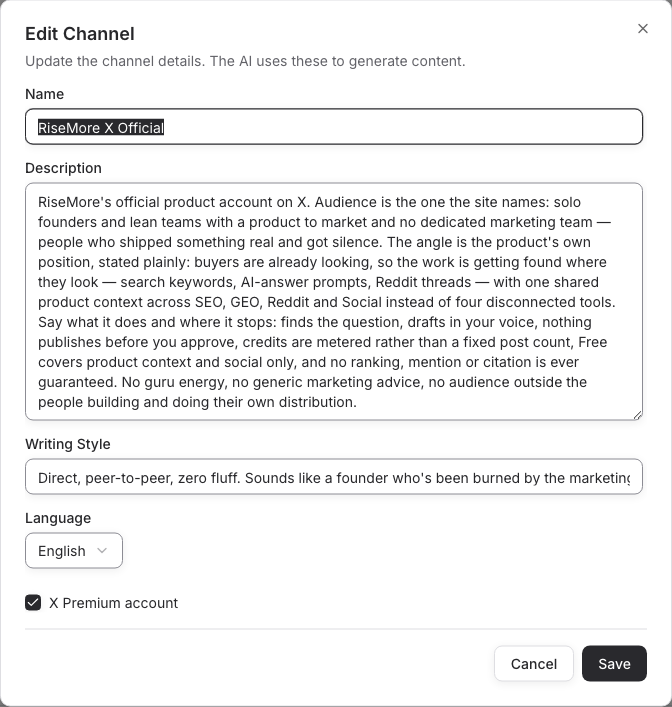
Open a channel and choose Edit. Set:
- Description: the audience and content focus of this account.
- Writing Style: the tone and presentation you want, such as direct, conversational explanations with concrete examples.
- Language: the language for posts on this channel.
Choose Save before requesting new content. These settings guide later generation; check existing drafts separately. Keep product-wide facts and positioning in Product Knowledge, so each channel can use the same accurate foundation.
Check the channel before connecting
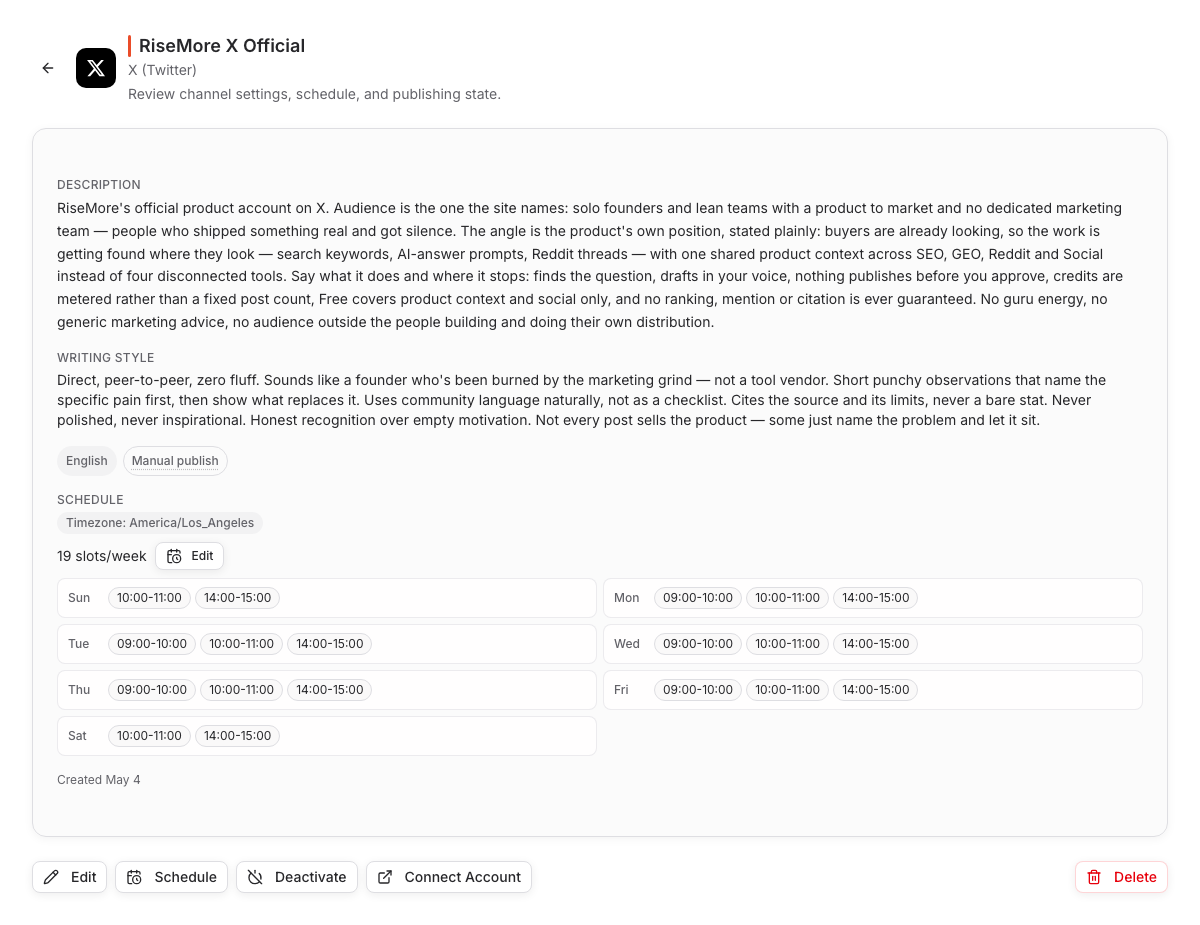
This channel has writing preferences and posting slots, but Manual publish means its external account is not connected for automatic delivery. The channel name and a configured schedule are not proof of a connection.
Connect X or LinkedIn
Before connecting, inspect any already approved posts in the channel. Connecting can enable automatic delivery of eligible approved posts; move a post back to draft if it is not ready to go live.
- Open the channel and choose Connect Account.
- In the platform's authorization window, check which account is signed in and read the requested permissions before continuing.
- Return to RiseMore. If LinkedIn offers an account-selection dialog, choose the intended account from the returned list or keep the personal account. A Company Page not offered in that list is not an available destination for this connection.
- Check the connected account name and Auto-publish state. The channel's display name alone does not prove which external account is connected.
- Open Schedule, check its timezone, and add posting slots before approving a new post.
The connection lets RiseMore publish approved content and perform the supported account operations shown in authorization. X requests access to read account information, posts, follows, and likes; publish posts and media; and maintain the connection. LinkedIn's current connection requests profile access and posting as the connected member. A connection does not approve an unreviewed draft.
When the account, schedule, text, and image are ready, continue with the Social Agent guide.
Read the connection state
| What you see | What it means and what to do |
|---|---|
| Manual / Not connected | Review and prepare posts, then publish them yourself; Mark Published records the result without sending it. Connect the account when you want automatic publishing. |
| Auto-publish with an account name | Approved posts can publish through that account when due. The product and channel must also be active. |
| No slots | Open Schedule and add posting slots before approving a post for the channel's queue. |
| LinkedIn connection expiring | Use Refresh Connection and complete authorization again; check the account name when you return. |
| Expired | Use Reconnect to restore the connection, then inspect any affected posts. |
| Paused / Inactive | Inspect the channel and product state before expecting scheduled publication. |
If authorization fails or a popup closes without a clear result, reopen the channel and check its connection state. A cancelled authorization does not prove the channel is connected. Use the displayed error and Troubleshooting if the connection cannot be completed.
Pause or disconnect a channel
Use Deactivate on a channel to pause its automatic publishing while retaining its settings. Before choosing Activate again, review its approved posts and their times.
Use Disconnect to remove the active connection credentials from RiseMore. The channel switches to manual publishing until you reconnect. To revoke the platform's authorization as well, use that platform's account settings. Disconnecting does not delete posts already published or recall a request already sent.
After connecting, reconnecting, or changing a posting schedule, check the queue. An approved post still represents permission to publish it; use Return to review in the post's Details when it is available and you need to withdraw that approval. See Review & Publish for the available actions.
Connect your WordPress website
Open SEO Agent and choose Connect your site. The connection uses your site URL, WordPress username, and an Application Password. Follow the WordPress connection steps for setup and verification.
Social account connections and your website connection serve different destinations. Connecting X or LinkedIn does not connect your website, and it does not choose a GEO publication destination.
Read the Privacy Policy for connected-platform and data-processing details. Continue with Review & Publish when you are ready to approve content.